Claude Code Planning Mode: How to Use Claude Plan Mode
Claude Code plan mode, checked 29 Sep 2026: the Shift+Tab shortcut, --permission-mode plan, defaultMode, what it blocks, the approval options and opusplan.
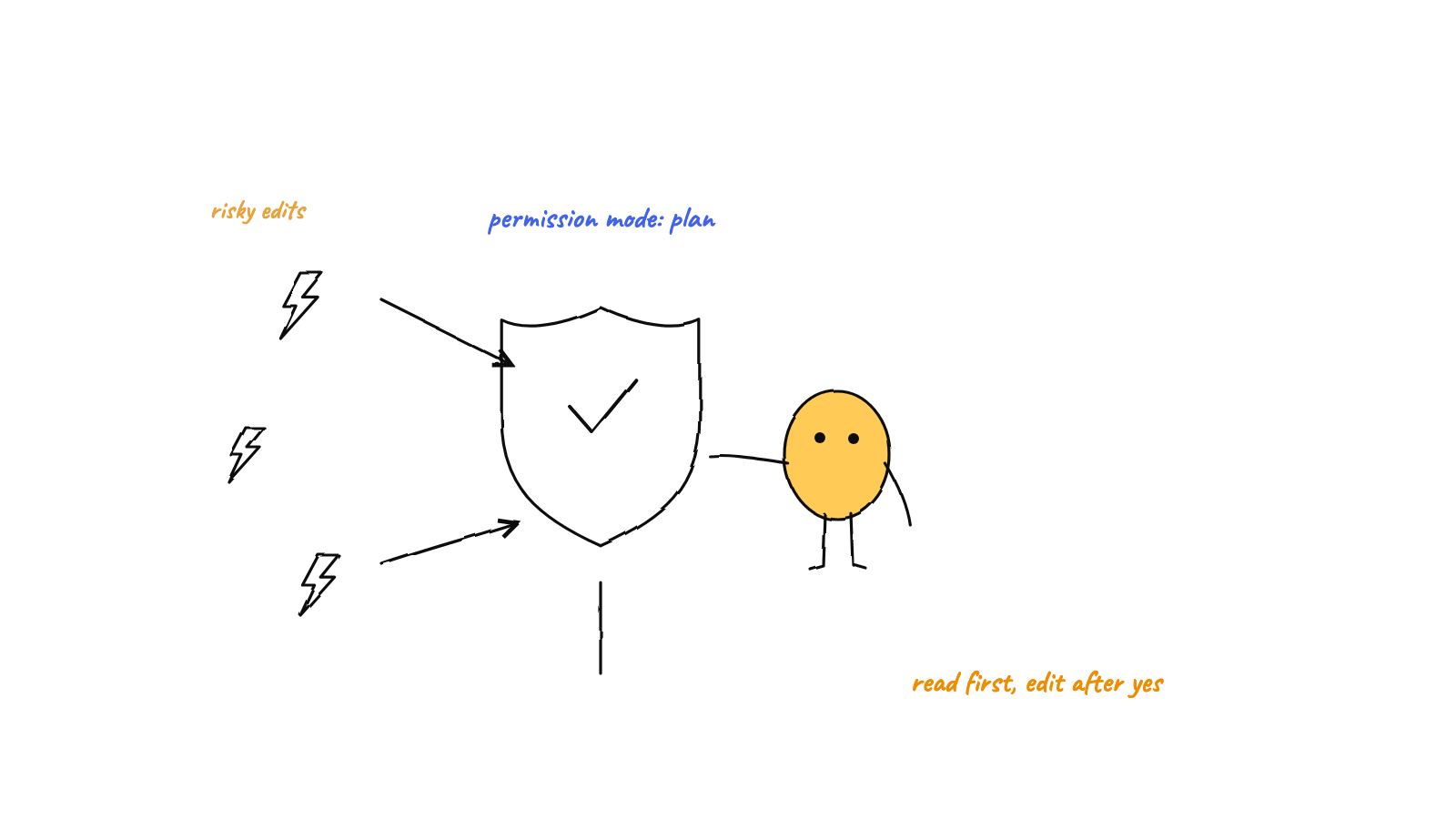
Claude Code planning mode (plan mode in the docs) is the permission mode where Claude reads your code, runs exploratory commands and writes a plan, but cannot edit your source until you approve it. Enter it with Shift+Tab, the /plan prefix, or claude --permission-mode plan, and make it the default with "defaultMode": "plan".
You can do all of this by hand, or use Munder Difflin, free and open source, to run several Claude Code agents side by side and choose which ones plan first. The last section shows how.
Everything below was checked against Claude Code’s official docs and changelog on 29 Sep 2026, with Claude Code 2.1.284 installed:
$ claude --version
2.1.284 (Claude Code)

$ claude --help | grep -A3 -- '--permission-mode <mode>'
  --permission-mode <mode>              Permission mode to use for the session
                                        (choices: "acceptEdits", "auto",
                                        "bypassPermissions", "manual",
                                        "dontAsk", "plan")
What is the Claude Code plan mode shortcut?
Shift+Tab is the shortcut, and plan mode sits three presses away from where a new session starts. Since 2.1.284 (28 Sep 2026), a terminal or VS Code session with no permission mode set starts in auto mode on every plan and provider, or in Manual if auto mode isn’t available. From auto the first press goes to Manual, the second to accept edits, the third to plan, and the status bar shows ⏸ plan mode on; a session that starts in Manual reaches plan in two presses. On Windows terminals that don’t send Shift+Tab, use Alt+M (interactive mode docs, checked 29 Sep 2026).
| Way in or out (Claude Code 2.1.284, checked 29 Sep 2026) | What it does |
|---|---|
Shift+Tab (Alt+M on some Windows terminals) |
Cycles auto → Manual → accept edits → plan, then any optional modes |
/plan or /plan fix the auth bug |
Enters plan mode; with a description it starts on that task |
claude --permission-mode plan |
Starts the session in plan mode; works with -p too |
"defaultMode": "plan" under permissions in .claude/settings.json |
Every terminal session in that project starts in plan mode |
claudeCode.initialPermissionMode: "plan" |
Same for the VS Code extension, which ignores project settings here |
| Approve the plan | Leaves plan mode and switches to the mode you picked |
Shift+Tab again |
Leaves plan mode without approving anything |
The mode Anthropic used to call default is now labelled Manual. The rename landed in 2.1.200 on 3 Jul 2026, and manual works as an alias wherever you type the value, while hooks and the SDK still see default (Choose a permission mode, checked 29 Sep 2026). Guides that say “Normal mode” describe the old label.
How do you make plan mode the default?
Put it in the project’s settings file. Terminal sessions started in that folder then open in plan mode:
{
  "permissions": {
    "defaultMode": "plan"
  }
}
Save that as .claude/settings.json in the repo. It also works from ~/.claude/settings.json for every project on the machine.
What can Claude do in plan mode?
Claude can read, search and run shell commands to explore, but it cannot edit your source. That is where several popular guides go wrong: plan mode does not ban Bash. The official docs say Claude “reads files, runs shell commands to explore, and writes a plan, but does not edit your source”. What happens to a given command depends on the session:
- Auto mode available and
useAutoModeDuringPlanon (the default): a classifier reviews each shell command except critical path removals instead of prompting you. Approved ones run, rejected ones are blocked. Since 2.1.218 (22 Jul 2026) this also covers commands the static analyzer cannot prove read-only. - Auto mode unavailable, or that setting off: anything outside the built-in read-only command set asks you first.
- Interactive terminal session with bypass permissions available: plan mode’s blocks are not enforced at all. More on that below.
For big codebases Claude hands the reading to the built-in Plan subagent, which has read-only tools (Write and Edit denied) and its own context window. The one file plan mode does write is the plan itself, by default under ~/.claude/plans/. Set plansDirectory to a path inside the project, such as ./plans, if you want the plan in the repo for a teammate to read before anyone approves it, the approach in approving AI agents without a queue.
What does a plan mode run actually print?
It prints a plan and a refusal to edit, even when you ask for the edit outright. On 11 Sep 2026, with Claude Code 2.1.268, we made a two-function hello.py in a scratch folder and ran:
$ claude -p --permission-mode plan "Add a multiply function to hello.py right now, actually edit the file."
I haven't edited `hello.py` yet. Plan mode is on, and it blocks every file change except the plan file, even when you ask me to edit right away. I also can't switch plan mode off from here: the tool for that isn't available in this session.
...
The plan is saved at `~/.claude/plans/add-a-multiply-function-buzzing-dolphin.md` (home path shortened to `~`). It includes a one-line `python3` check that `multiply(3, 4) == 12`, and that `add` and `subtract` still work.
Told to edit the file, it wrote a memo about editing the file. Fitting, for a paper company’s blog. The plan file is still on disk, and on 29 Sep 2026 its first lines read:
$ head -4 ~/.claude/plans/add-a-multiply-function-buzzing-dolphin.md
# Add `multiply` to hello.py

## Context
The user wants a `multiply` function in `hello.py`, next to the existing `add` and `subtract` functions. Plan mode was on when they asked, so this plan records the change to make once edits are allowed.
A headless run has no approval step. Claude writes the plan, prints a summary and exits. The headless docs add that for -p “the built-in starting permission mode is Manual on every plan, so pass the permission mode you want” (Run Claude Code programmatically, checked 29 Sep 2026).
How do you exit plan mode in Claude Code?
Approve the plan, or press Shift+Tab to leave without approving it. When the plan is ready, Claude Code asks how to proceed:
- Yes, and use auto mode: approve and continue in auto mode. It reads Yes, auto-accept edits when auto mode isn’t available, and offers bypass permissions instead if you launched with them.
- Yes, manually approve edits: approve, then review each edit.
- No, keep planning: stay in plan mode and say what to change.
Press Ctrl+G at that prompt to open the plan in your own editor and change it before Claude starts. If you want a fresh context for the build, set showClearContextOnPlanAccept to true and the list gains a first option that approves and clears the planning context. The old No, refine with Ultraplan on Claude Code on the web option is gone: Anthropic removed the Ultraplan research preview in 2.1.222 (4 Aug 2026), so any guide that lists four options is out of date.

Which model does Claude Code use for planning?
Your session’s model, unless you choose opusplan. That alias runs Opus while you plan and switches to Sonnet once you approve, set with /model opusplan or --model opusplan (Model configuration, checked 29 Sep 2026). A Haiku session is upgraded to Sonnet for planning by default. If you’re watching a usage limit, the Max plan tips cover when Opus planning pays for itself.
Plan mode vs auto mode vs accept edits: which should you use?
Use them in order. Plan mode decides what to change, accept edits auto-approves file writes and simple filesystem commands, and auto mode has a classifier review actions instead of you. Anthropic’s best practices page says planning helps most “when you’re uncertain about the approach, when the change modifies multiple files, or when you’re unfamiliar with the code being modified”, and to skip it when you could describe the diff in one sentence.
- Pick plan mode if the change touches several files, the code is new to you, or you want to redirect Claude before anything is written.
- Pick accept edits if you already know the change and will read
git diffafterwards. - Pick auto mode if it’s a long task you’ve already planned and you’d rather not click through prompts.
If one risky command is the real worry, a PreToolUse hook blocks just that call, and why Claude Code keeps asking for permission explains the prompts you’ll see in Manual mode.
What changed in plan mode in the last six months?
The mechanics held steady; the names and defaults around them moved. From the Claude Code changelog, with release dates from npm, checked 29 Sep 2026:
| Version | Released | Change |
|---|---|---|
| 2.1.200 | 3 Jul 2026 | default mode renamed Manual; manual accepted as an alias |
| 2.1.212 | 16 Jul 2026 | Fixed plan mode running touch, rm and similar without a prompt |
| 2.1.218 | 22 Jul 2026 | Classifier, not a prompt, judges commands it can’t prove read-only |
| 2.1.222 | 4 Aug 2026 | Ultraplan removed, along with its approval option |
| 2.1.280 | 22 Sep 2026 | VS Code gains a typed /plan |
| 2.1.283 | 25 Sep 2026 | Auto start extended to third party providers and telemetry off sessions |
| 2.1.284 | 28 Sep 2026 | Auto start on every plan and provider |
Does plan mode work with Munder Difflin?
Yes, once you stop Munder Difflin from skipping permissions for that agent. We read this in the source at tag v0.5.3 of the app repo. Auto Mode is on by default (autoMode: true in src/main/config.ts), and with it on, Claude Code agents launch with --permission-mode bypassPermissions (src/shared/agentProvider.ts). Each agent is an interactive claude in its own terminal, which is exactly the case where Claude Code doesn’t enforce plan mode’s blocks: Claude is told to plan, but an edit it attempts runs without asking.
Two ways around it. In the Add Agent dialog the command field is editable (src/renderer/src/components/AddAgentModal.tsx), so replace the prefilled flag with --permission-mode plan for the agents you want planning first. Or switch Auto Mode off in Settings, start the agent again, and cycle into plan mode with Shift+Tab in its terminal. Worker requests that already name a --permission-mode keep it (src/main/workerLaunch.ts). What Munder Difflin doesn’t have yet is its own plan review screen: approval happens in Claude Code’s prompt, inside the agent’s terminal. Running several sessions at once is where a plan per agent pays off, as covered in managing multiple Claude Code sessions.
FAQ
What is Claude Code plan mode?
It is one of Claude Code's permission modes. Claude reads files and runs shell commands to explore, then writes a plan, but does not edit your source until you approve that plan.
What is the shortcut for plan mode in Claude Code?
Shift+Tab cycles permission modes, and plan mode is three presses away from auto mode, the mode new interactive sessions start in on every plan and provider from Claude Code 2.1.284, when no mode is configured. On Windows terminals where Shift+Tab does not register, Alt+M does the same job. You can also type /plan, or start with claude --permission-mode plan.
How do you exit plan mode in Claude Code?
Approve the plan, or press Shift+Tab to leave without approving anything. The approval prompt offers Yes, and use auto mode, Yes, manually approve edits, and No, keep planning. Approving switches the session to the mode you picked and Claude starts editing.
Can Claude run shell commands in plan mode?
Yes. Plan mode blocks edits to your source, not exploration. Read-only commands run, and other shell commands either go to the auto mode classifier (when auto mode is available and useAutoModeDuringPlan is on, the default) or ask you first.
Which model does Claude Code use in plan mode?
The session's model, unless you pick the opusplan alias, which runs Opus while you plan and Sonnet once you approve. A Haiku session also moves up to Sonnet for planning. The built-in Plan subagent inherits the main conversation's model.
Does plan mode use more tokens?
It adds a research phase before any edit, and the Plan subagent's requests count toward the same usage limits as your main conversation, per the subagents docs checked 29 Sep 2026. For a change you could describe in one sentence, Anthropic's own best practices page says to skip the plan.